
November 18, 2025
Why Google Workspace Automation is a Game-Changer for
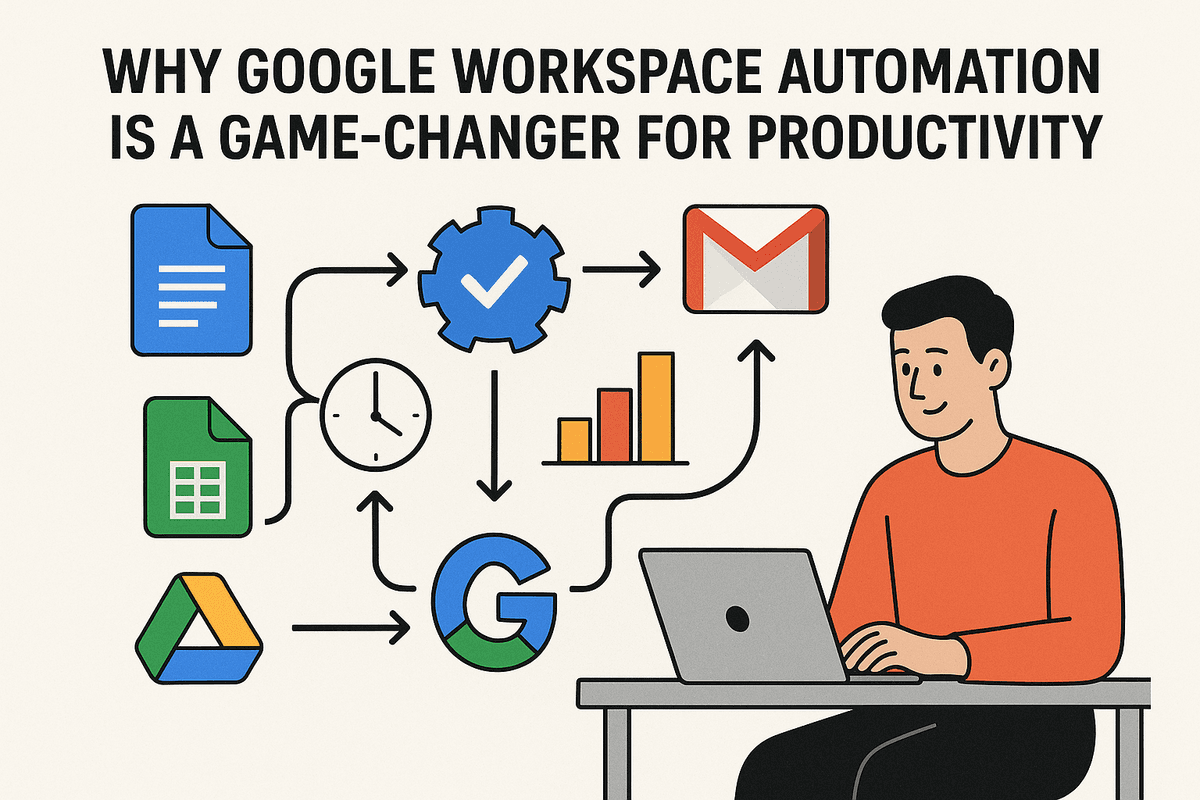
Why Google Workspace Automation is a Game-Changer for Productivity
How many times have you found yourself toggling between Gmail, Google Sheets, and Google Calendar, manually copying and pasting information from one app to another? This digital busywork—downloading attachments, updating spreadsheets, sending follow-up emails—feels productive, but it’s a silent drain on your time and focus. This is where Google Workspace automation steps in, not just as a convenience, but as a fundamental shift in how we work. It’s about transforming your suite of familiar tools into a powerful, self-driving engine for productivity.
What Exactly is Google Workspace Automation?
At its core, Google Workspace automation is the practice of creating systems that allow your Google apps to perform tasks and manage workflows without your direct, manual intervention. It’s about setting up rules and connections so that your digital workspace intelligently handles repetitive jobs for you.
Think beyond simple email filters. Imagine this:
- A new lead fills out a Google Form on your website.
- Instantly, a new folder for that lead is created in Google Drive.
- A new row with their information is added to a Google Sheet.
- A personalized welcome email is automatically drafted and sent from your Gmail.
- A follow-up task is added to your Google Calendar for three days later.
This entire sequence happens in seconds, flawlessly, while you focus on strategic planning. That is the power of a truly automated workflow. It’s not about replacing human intelligence; it’s about liberating it from the shackles of repetitive tasks.
The Shift from Manual Tasks to AI-Driven Workflows
For years, automation was based on simple “if this, then that” logic. But the real game-changer is the integration of Artificial Intelligence. Today’s Google Workspace automation moves beyond rigid rules to create dynamic, AI-driven workflows.
AI can now understand context, summarize long documents, and even make decisions. Instead of just saving an attachment, an AI-powered workflow can:
- Analyze the content of an incoming invoice in Gmail.
- Extract key data like the amount due, client name, and due date.
- Populate a Google Sheet with this extracted information.
- Draft a reply confirming receipt and schedule a payment reminder in your calendar.
This shift from mechanical repetition to intelligent execution minimizes human error, accelerates processes, and frees up your team’s cognitive resources for problem-solving, creativity, and customer engagement—the work that truly drives business growth.
How This Guide Will Help You Reclaim Your Time
Understanding the potential of Google Workspace automation is the first step; implementing it is the next. This guide is your practical roadmap to reclaiming countless hours lost to manual work. We will move beyond theory and provide you with actionable strategies and step-by-step instructions.
You will learn how to leverage everything from native Google features like App Scripts to advanced third-party AI tools that integrate seamlessly with your workspace. By the end of this guide, you won't just know what automation is—you will have the skills to build, manage, and scale AI-powered workflows that transform your team's efficiency. It's time to stop just using Google Workspace and start making it work for you.
Getting Started with Native Google Workspace Automation Features
Before diving into advanced AI, it’s crucial to master the powerful tools already at your fingertips. The foundation of effective google workspace automation lies within the native features you use every day. By leveraging these built-in capabilities, you can immediately reclaim hours from your week, reduce manual errors, and create a more efficient operational baseline. Let's explore how to transform your core Google apps into productivity powerhouses.
Automating Gmail: Master Filters, Templates, and Scheduling
Your inbox doesn't have to be a source of stress. Gmail’s built-in automation tools can turn it into a self-organizing command center.
- Filters: Go beyond simple sorting. Create filters that automatically label incoming emails from key clients, archive low-priority newsletters, star messages containing specific keywords like "urgent," or forward project-related communications directly to the relevant team member. This proactive organization ensures you focus only on what matters most.
- Templates (Canned Responses): Stop re-typing the same message. For frequent inquiries, follow-ups, or acknowledgments, save your response as a template. With just two clicks, you can insert a pre-written, personalized message, saving significant time while maintaining professional consistency.
- Schedule Send: Control when your message lands. Write emails when it’s convenient for you and schedule them to send at the optimal time for your recipient, whether it’s the start of their workday or during peak engagement hours.
Streamlining Data with Google Sheets Macros and Functions
Google Sheets is far more than a digital ledger; it’s a dynamic engine for data automation. Instead of performing repetitive formatting and calculations manually, you can automate them.
- Macros: Record a sequence of actions—like applying specific formatting to a new data export, creating a chart, and sorting the results—and save it as a macro. The next time you need to perform that exact sequence, you can run the macro with a single click or a keyboard shortcut.
- Powerful Functions: Elevate your spreadsheets with functions that automate data handling. Use
IMPORTRANGEto pull data from another spreadsheet automatically,QUERYto run powerful database-style searches on your data sets, andARRAYFORMULAto apply a single formula across an entire column, ensuring it updates as new rows are added.
Building No-Code Apps with Google AppSheet to Connect Your Workflow
When your process outgrows a simple spreadsheet, Google AppSheet is your next step. This no-code platform transforms your data in Google Sheets into custom mobile and web applications without writing a single line of code. This is a game-changer for google workspace automation, allowing you to build tailored solutions for your unique needs. Imagine creating a mobile app for your sales team to log client visits on the go, an inventory management tool for your warehouse, or a project tracker that assigns tasks and sends notifications—all powered by a Google Sheet you already use.
Effortless Data Collection using Google Forms and Connected Sheets
Eliminate manual data entry entirely with the seamless integration of Google Forms and Sheets. Create a Google Form for any data collection need: customer feedback, event registration, internal requests, or daily check-ins. The real magic happens when you link your form to a Google Sheet. Every time someone submits the form, their response is instantly and automatically added as a new row in your spreadsheet, perfectly organized and ready for analysis. This creates a clean, real-time dataset you can then use with Sheets' macros and functions for a fully automated data collection and reporting workflow.
Level Up with AI-Powered Google Workspace Automation Tools
While native features provide a solid foundation, the true power of Google Workspace automation is unlocked when you integrate advanced AI tools. These solutions act as force multipliers, connecting your apps in sophisticated ways, generating content on demand, and performing complex analysis with minimal effort. Let's explore the ecosystem of tools that can elevate your productivity to the next level.
Connecting Everything: Using Zapier and Make for Advanced Integrations
Google Workspace doesn't exist in a vacuum. Your team likely uses a suite of other applications like Slack, Asana, or Salesforce. This is where platforms like Zapier and Make.com shine. These no-code/low-code integration platforms act as digital glue, connecting Google Workspace to thousands of other apps. You can create "Zaps" (in Zapier) or "Scenarios" (in Make) that trigger actions across platforms. For example:
- Automated Project Creation: When a new row is added to a Google Sheet, automatically create a new project in Asana and post a notification in a Slack channel.
- Smart Lead Management: When a new email from a potential client arrives in Gmail, create a new contact in your CRM and add their details to a "Leads" Google Sheet.
AI is now a core part of these platforms, allowing you to add steps that summarize text, classify sentiment, or draft responses before passing the data to the next app in your workflow.
Exploring Gemini for Google Workspace: Your AI-Powered Assistant
Directly integrated into the tools you use every day, Gemini for Google Workspace is your on-demand AI partner. This powerful assistant is designed to understand context and help you create, analyze, and communicate more effectively. Instead of a separate tool, Gemini surfaces right where you need it, making Google Workspace automation feel seamless and intuitive.
- In Gmail: Draft entire professional emails or replies based on a simple prompt.
- In Google Docs: Brainstorm ideas, write first drafts, summarize long documents, or rewrite text in a different tone.
- In Google Sheets: Use the "Help me organize" feature to automatically create project plans, schedules, or trackers with AI-generated tables.
- In Google Slides: Generate unique, original images for your presentations from a text description, saving hours of searching for stock photos.
AI Add-ons for Docs and Sheets That Automate Content and Analysis
The Google Workspace Marketplace is a treasure trove of specialized AI-powered add-ons that extend the functionality of Docs and Sheets. While Gemini provides broad capabilities, these add-ons often solve very specific problems with powerful algorithms.
- For Google Docs: Discover tools that can check for plagiarism, suggest advanced stylistic improvements, or repurpose a single document into a blog post, a social media thread, and an email newsletter—all with a few clicks.
- For Google Sheets: Go beyond basic formulas with add-ons that can clean and normalize messy data, run sentiment analysis on columns of customer feedback, or use predictive modeling to forecast sales based on historical data.
Building Custom Solutions with Google Apps Script and APIs
For ultimate control and customization, Google Apps Script is the answer. This JavaScript-based scripting platform allows you to build bespoke solutions that automate virtually any repetitive task within or between Google Workspace apps. While it requires some coding knowledge, its potential is nearly limitless. You can create custom functions in Sheets, build interactive sidebars in Docs, or design entire web apps that run within your Workspace environment. The real power comes from combining Apps Script with external AI APIs. You can write a script that automatically takes form submissions, sends the text to an AI model for analysis, and then populates a Google Sheet with the categorized results and a suggested email response. This is the pinnacle of custom Google Workspace automation.
Best Practices for a Seamless Automation Strategy
Diving into automation can transform your team's productivity, but a successful rollout requires a thoughtful strategy. Jumping in without a plan can lead to inefficient bots and security risks. By following these best practices, you can build a robust, secure, and highly effective Google Workspace automation framework that delivers tangible results.
Identifying the Right Tasks for Your First Automation Project
The secret to gaining momentum with automation is to start small and aim for a quick, impactful win. Look for tasks that are the "low-hanging fruit" of inefficiency. Your ideal first candidate is a process that is:
- Repetitive and Frequent: Think of tasks performed daily or weekly, like generating standard reports, sending reminder emails, or saving email attachments to a specific Google Drive folder.
- Rule-Based: The process follows a clear "if this, then that" logic with very few exceptions. Complex decision-making is not a good fit for an initial project.
- Time-Consuming but Low-Risk: Choose a task that eats up valuable time but where an error wouldn’t cause a major operational crisis. Populating a Google Sheet from Google Form submissions is a perfect example.
Your first Google Workspace automation project should solve a genuine pain point and demonstrate immediate value. This success builds confidence and encourages wider adoption across your team.
Mapping Your Workflow: The Blueprint for Successful Automation
You wouldn’t build a house without a blueprint, and you shouldn’t build an automation without a workflow map. Before you write a single line of code or configure any tool, you must thoroughly understand the manual process you intend to replace.
Start by documenting every single step. A simple flowchart or a numbered list works well. Identify:
- The Trigger: What event kicks off the workflow? (e.g., a new email arrives with a specific subject line).
- The Actions: What are the sequential steps that need to happen? (e.g., extract the attachment, save it to a specific Drive folder, create a task in Google Tasks, notify a channel in Google Chat).
- The Data: What information is moved from one step to the next?
- The Outcome: What does a successful completion look like?
This map exposes hidden bottlenecks and ensures your automated solution is comprehensive and efficient. Automating a broken process only makes the mistakes happen faster.
Maintaining Security and Privacy in Automated Systems
When you implement Google Workspace automation, especially with AI tools, you are granting systems access to your data. Protecting that data is paramount.
- Embrace the Principle of Least Privilege (PoLP): Only grant an automation tool the absolute minimum permissions it needs to perform its function. If an app only needs to read your Google Calendar, don't give it permission to edit your Google Drive files.
- Vet Your Tools: Use reputable, well-reviewed third-party applications. Carefully read their privacy policies to understand how they handle your data. Whenever possible, prioritize native Google tools like App Script.
- Conduct Regular Audits: Periodically review which applications have access to your Google account via the security settings page. Revoke access for any tools you no longer use or trust.
- Be Cautious with Sensitive Data: Exercise extreme care when automating any workflow that involves personally identifiable information (PII), financial records, or other confidential data.
Measuring Success: How to Track ROI and Efficiency Gains
How do you know if your automation efforts are paying off? You need to define and track key performance indicators (KPIs) to measure your return on investment (ROI).
- Time Saved: This is the most direct metric. Calculate the hours saved per employee each week or month. (e.g., 20 minutes per day saved on scheduling equals nearly 7 hours per month).
- Error Reduction: Compare the rate of human error in the manual process to the near-zero rate of the automated system. This is crucial for data entry and reporting tasks.
- Increased Throughput: Measure the increase in output. How many more reports were generated, invoices processed, or client onboarding sequences completed in the same amount of time?
- Employee Satisfaction: While harder to quantify, reducing tedious work frees up your team for more strategic, engaging tasks, which boosts morale and retention.
By tracking these metrics, you can clearly demonstrate the value of your Google Workspace automation strategy and make data-driven decisions about which processes to optimize next.
Real-World Examples of Google Workspace Automation
Theory is one thing, but seeing Google Workspace automation in action is where its true power becomes clear. These real-world examples showcase how teams are transforming their daily operations by connecting their favorite Google apps into seamless, intelligent workflows.
Case Study: Automating Client Onboarding from Gmail to Google Drive
The Challenge: A digital marketing agency was manually creating client folders and documents every time a new contract was signed. This process was slow, prone to human error, and led to inconsistent folder structures, wasting valuable time that could be spent on strategy.
The Automated Solution: They implemented a Google Workspace automation using Google Apps Script. A script now monitors a specific Gmail label (e.g., "New Client Signed"). When an email with the signed contract lands there, the script automatically:
- Parses the client's name from the email subject.
- Creates a new parent folder in Google Drive named after the client.
- Populates this folder with a standardized set of sub-folders (e.g., "Contracts," "Reports," "Assets").
- Generates templated Google Docs and Sheets (like a project brief and progress tracker) inside the new folders.
The Result: The client onboarding process is now instantaneous and error-free. The team saves hours each week, ensures consistency across all client accounts, and can begin work immediately.
Case Study: Generating Automated Weekly Reports with Google Sheets
The Challenge: A sales team spent every Monday morning manually pulling data from various sources to compile a weekly performance report in Google Sheets. The task was repetitive, time-consuming, and delayed crucial analysis until later in the day.
The Automated Solution: By leveraging the power of automation within Google Workspace, the team connected their data sources directly to a master Google Sheet. Using IMPORTRANGE functions and scheduled scripts, the sheet now automatically:
- Pulls the latest sales figures from other spreadsheets every Monday at 8 AM.
- Updates charts and pivot tables with the new data.
- Uses conditional formatting to highlight key wins and areas needing attention.
- Sends an automated email via Gmail with a link to the updated report to all stakeholders.
The Result: The report is ready for review first thing Monday morning without any manual intervention. The team can focus on analyzing the data and planning their week instead of compiling it.
Case Study: Streamlining HR Requests with Google Forms and Chat
The Challenge: An HR department was overwhelmed with time-off and expense requests coming in via email, direct messages, and verbal conversations. Tracking was chaotic, approvals were delayed, and there was no central record of requests.
The Automated Solution: They created a simple workflow using interconnected Google apps.
- Google Forms: Employees now submit all requests through a standardized Google Form.
- Google Sheets: Each submission automatically populates a new row in a Google Sheet, creating a clean, organized log.
- Google Chat: An integration sends an instant notification to a dedicated HR Chat space with a summary of the request and a direct link to the Sheet for approval.
The Result: The HR team has a centralized, real-time dashboard for all requests. Approval times have been cut in half, and the automated paper trail ensures perfect record-keeping and transparency.
Case Study: Managing Marketing Campaigns Across Google Workspace Apps
The Challenge: A marketing team struggled to coordinate complex campaigns. Tasks were scattered, assets were hard to find, and communication was fragmented across Google Docs, Drive, and Calendar.
The Automated Solution: The team built an integrated campaign management hub. When a new campaign is added as an event in Google Calendar, an automation triggers a chain reaction:
- A new project folder is created in Google Drive.
- A campaign brief template (Google Doc) and a task list (Google Sheet) are generated within that folder.
- Key team members are automatically invited to the Calendar event and shared on the documents.
- A dedicated Google Chat space is created for campaign-specific discussions, with a welcome message linking to the new Drive folder.
The Result: Campaign kickoff is streamlined and standardized. Everyone has access to the right information from the start, improving collaboration and ensuring all tasks are centrally tracked.
Conclusion: The Future of Your Workspace is Automated
We’ve journeyed through the transformative power of AI and automation within the Google ecosystem, moving from theory to practical application. The key takeaway is clear: the era of manual, repetitive digital tasks is ending. Embracing Google Workspace automation is no longer a futuristic concept for large enterprises; it’s a tangible, accessible strategy for businesses of all sizes to enhance efficiency, reduce human error, and free up valuable time for strategic, high-impact work. The future isn’t about working more hours—it’s about making the hours you work count.
Recap: Choosing the Right Automation Tools
As we've discussed, the path to a fully automated workspace is not a one-size-fits-all solution. Your ideal toolkit depends on your specific needs, technical comfort level, and the complexity of the workflows you aim to build.
- For Simple, Internal Tasks: Start with Google’s native tools. Google Apps Script offers powerful, customized solutions for those comfortable with code, while AppSheet provides a no-code platform to build custom apps directly from your Sheets and Drive data.
- For Multi-App Connectivity: When your workflows need to bridge Google Workspace with other platforms (like Slack, Asana, or Salesforce), third-party integrators like Zapier and Make are your best friends. Their intuitive, AI-assisted builders make complex connections simple.
- For Advanced AI Integration: To truly leverage artificial intelligence for tasks like content generation, data analysis, or intelligent email sorting, integrating dedicated AI tools via APIs or advanced platforms will unlock the next level of Google Workspace automation.
Your Quick-Start Checklist for Implementing Your First Workflow
Feeling inspired but not sure where to begin? Don’t let analysis paralysis stop you. Use this simple checklist to launch your first automation today.
- Identify a Pain Point: Pinpoint a low-risk, high-frequency task. Do you manually save every invoice from Gmail to a specific Drive folder? Do you copy-paste data from Google Forms into a Sheet and then a Doc? Start there.
- Map the Steps: Clearly write down the trigger and the desired action(s). For example: "Trigger: When a new email with the subject 'Invoice' arrives in my inbox. Action: Save the PDF attachment to the 'Invoices 2024' folder in Google Drive."
- Select Your Tool: For the example above, a simple Zapier or Make workflow is perfect. For a task entirely within Google, a quick AppSheet app could be the answer.
- Build and Test: Follow the tool’s instructions to connect your accounts and set up the logic. Send a test email to yourself to ensure the workflow runs correctly.
- Deploy and Monitor: Once it’s working, let it run! Check in after a day or two to confirm everything is flowing smoothly and celebrate your first step into a more productive future.
Take the Next Step to Unlock Peak Productivity
You now have the knowledge and the roadmap to reclaim your workday. The single greatest barrier to automation is inertia. By taking one small, deliberate step—like automating a single, five-minute daily task—you can start a chain reaction that transforms how your entire team operates.
Ready to move beyond the basics and implement a robust automation strategy? Our team of experts specializes in crafting custom Google Workspace automation solutions that drive real results.
[Schedule a Free Consultation Today to Discover Your Automation Potential]