September 9, 2025
What Is an AI Upscaler and Why Do You Need One?
What Is an AI Upscaler and Why Do You Need One?
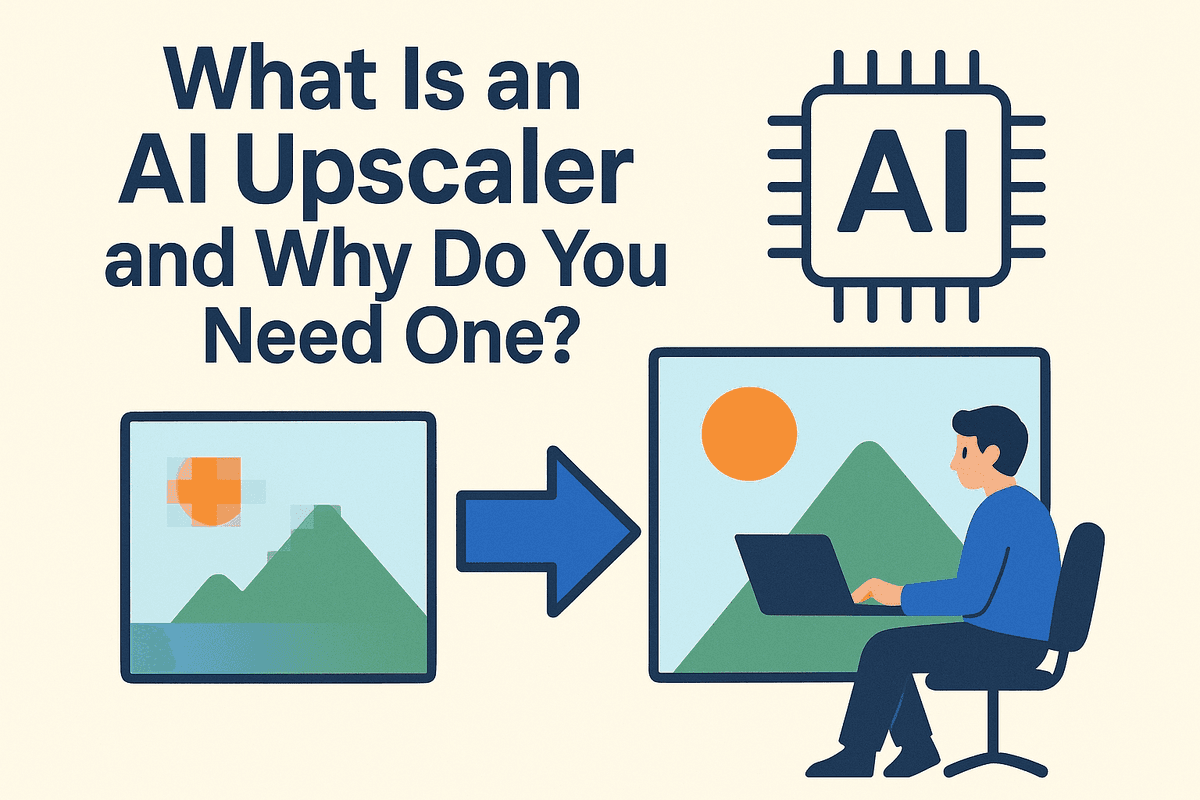
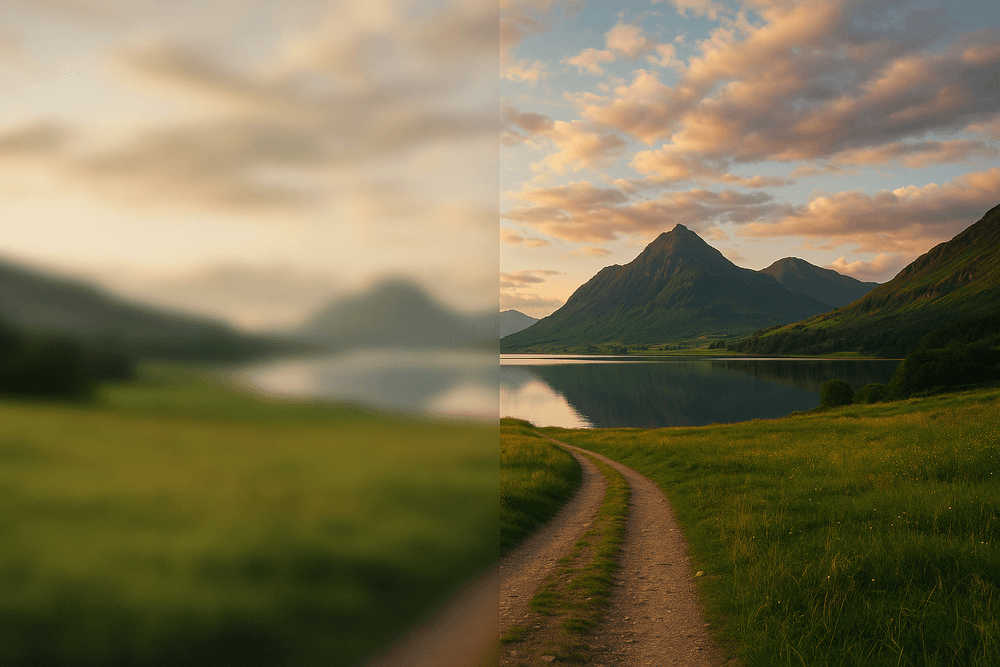
Ever tried to enlarge a small photo, only to end up with a blurry, pixelated mess? That’s a common frustration, but it’s one that a powerful AI upscaler is designed to solve. Put simply, an AI upscaler is a sophisticated tool that uses artificial intelligence to increase the resolution of an image—making it bigger—without the typical loss in quality. It’s a game-changer for anyone working with digital images, from photographers and graphic designers to marketers and hobbyists. Instead of just stretching pixels, it intelligently rebuilds your image for a sharper, cleaner, and more detailed result.
From Pixels to Perfection: The Magic Behind AI Image Upscaling
To understand what makes an AI upscaler so effective, you first have to know how traditional resizing works. Standard image editors use methods like bicubic or bilinear interpolation. These algorithms essentially look at the nearby pixels and guess the color of the new pixels they need to create. This process is like stretching a rubber band—the original information is just spread thinner, inevitably leading to blurriness and jagged edges.
An AI upscaler takes a fundamentally different approach. It’s powered by a deep learning model, often a Generative Adversarial Network (GAN), that has been trained on millions of pairs of low-resolution and high-resolution images. Through this extensive training, the AI learns to recognize patterns, textures, edges, and features—like the texture of a brick wall, the strands of hair, or the fine print on a sign. When you upload your low-resolution image, the AI doesn't just stretch it; it analyzes the content and generates new, contextually accurate pixels to fill in the gaps. It’s less like stretching and more like a skilled artist meticulously restoring a painting, adding detail where it logically should be.
Say Goodbye to Blurry Images: Key Benefits of Using an AI Upscaler
Integrating an AI upscaler into your workflow unlocks a host of practical advantages that can save time, money, and creative projects.
- Revitalize Old Photos: Breathe new life into old, digitized family photos or scans that suffer from low resolution. An AI tool can enhance facial features and bring forgotten details back into focus.
- Prepare Images for Print: Low-resolution images look terrible in print. An AI upscaler can increase the pixel density (DPI) of your images to meet the high-quality standards required for posters, brochures, and canvases.
- Enhance E-commerce and Marketing Visuals: Make your product photos pop. Turn a standard-resolution shot into a high-definition image perfect for large banners, detailed zoom features on your website, and crisp social media ads.
- Rescue Unusable Assets: Sometimes, the only version of an image you have is a small, compressed file from the web. AI upscaling can salvage these assets, making them viable for professional projects.
How AI Upscaling Compares to Traditional Resizing Methods
The difference between AI and traditional methods is the difference between guessing and understanding.
Traditional resizing is a mathematical process. It averages existing pixel data to create new pixels. This is a "dumb" process that doesn't understand the image content, which is why it always softens the image and introduces artifacts. It can make an image bigger, but it can never make it sharper or more detailed.
The AI upscaler, on the other hand, performs an intelligent reconstruction. Because it has learned from a vast dataset, it makes educated inferences about what the missing details should look like. It can sharpen edges, refine textures, and reduce noise because it recognizes the subjects in the photo. This ability to add new, realistic information is what sets AI image enhancement apart, delivering a final product that is not only larger but genuinely better in quality.
The Best AI Upscaler Tools on the Market Today
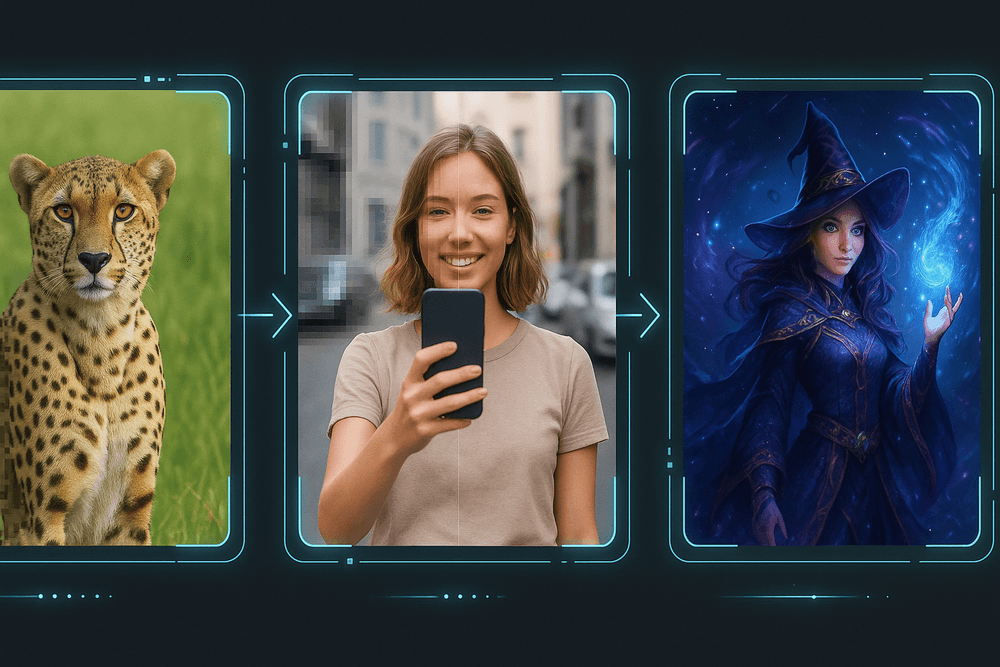
With a flood of options available, finding the right AI upscaler can feel overwhelming. The truth is, the "best" tool depends entirely on your specific goals. A professional photographer has vastly different needs than a blogger looking for a quick image boost. We've tested the leading platforms to help you choose, breaking them down by their ideal use case.
Top Pick for Professional Photographers: Topaz Labs Gigapixel AI
When pristine quality and granular control are non-negotiable, Topaz Labs Gigapixel AI stands in a class of its own. Designed from the ground up for photographers and print professionals, this dedicated desktop software delivers breathtakingly natural results. Unlike simpler tools, Gigapixel AI excels at enhancing RAW files, preserving crucial image data and producing enlargements that are rich in authentic detail.
Its key strength lies in its specialized AI models trained for different subjects. Whether you're upscaling a portrait and need realistic skin texture or a landscape that demands sharp foliage, you can select a model to match. The fine-tuning sliders for noise suppression and blur removal give you unparalleled command over the final output, ensuring the enlargement is clean, crisp, and free of digital artifacts. For professionals who need a reliable AI upscaler for large prints or high-resolution digital delivery, Gigapixel AI is the industry-standard investment.
Best Free AI Upscaler for Quick Enhancements: Upscale.media
For those moments when you just need a bigger, clearer image without any fuss, Upscale.media is the perfect solution. This browser-based tool is the epitome of simplicity: drag and drop your image, select your upscaling factor (2x or 4x), and download the result. There's no software to install and no complex settings to navigate, making it incredibly accessible for everyone.
This free AI upscaler is ideal for social media managers, content creators, or anyone who finds an old, low-resolution photo they want to share. While it lacks the advanced controls of professional-grade software, it does an excellent job with standard image formats like JPG and PNG. It intelligently smooths out pixelation and sharpens details for a noticeable improvement in quality. For fast, free, and effective enhancements on the fly, Upscale.media delivers impressive results with zero learning curve.
Most Versatile Tool for Creative Projects: Magnific AI
Magnific AI pushes the boundaries of what an AI upscaler can be. It’s less of a simple enlarger and more of a creative enhancement engine, making it a favorite among digital artists, game designers, and concept artists. Where other tools focus solely on recreating existing details, Magnific AI can intelligently "hallucinate" and add new, hyper-realistic textures and elements that are consistent with the original image.
Its standout feature is the "Creativity" slider, which allows you to control how much artistic liberty the AI takes. At low levels, it acts as a high-fidelity upscaler. At higher levels, it can transform a simple sketch into a photorealistic render or add intricate detail to a 3D model’s texture map. This makes it an incredibly powerful tool for ideation and finishing creative work, turning low-resolution concepts into stunning, high-detail masterpieces.
At a Glance: Feature and Pricing Comparison
| Tool | Best For | Key Feature | Pricing Model |
| :--- | :--- | :--- | :--- |
| Topaz Gigapixel AI | Professional Photographers & Print | Specialized AI models & fine-tuning | One-time purchase |
| Upscale.media | Casual Users & Quick Fixes | Browser-based, extreme ease-of-use | Free tier, with paid plans |
| Magnific AI | Digital Artists & Creative Professionals | Adds new, plausible detail ("Creativity") | Subscription-based |
| Adobe Lightroom | Photographers in the Adobe ecosystem | Seamless RAW workflow integration | Subscription (Adobe CC) |
Decoding the Features: What Makes a Great AI Upscaler?
When you dive into the world of AI image enhancement, the sheer number of options can feel overwhelming. While most tools promise to make your photos bigger and better, the truly exceptional ones are defined by a specific set of features. Understanding these capabilities is the key to choosing an AI upscaler that not only meets your needs but revolutionizes your workflow. Let's break down the core components that separate the good from the great.
More Than Just Size: Understanding Resolution Multipliers
At its heart, an AI upscaler's job is to increase pixel count. This is typically expressed as a multiplier, such as 2x, 4x, or even 8x and beyond.
- 2x Upscaling: Doubles the width and height of your image, resulting in four times the total pixels. This is perfect for giving web graphics or social media photos a quick, sharp boost.
- 4x Upscaling: Quadruples the dimensions, yielding 16 times the pixels. This is the sweet spot for many users, turning a low-resolution shot into something suitable for high-quality online display or small prints.
- 8x+ Upscaling: This is where high-end tools shine. An 8x upscale provides a staggering 64 times the original pixel count, making it possible to create large-format prints from a modest source file.
However, a higher number isn’t always better. The true test of a great AI upscaler is its ability to intelligently add detail and maintain realism at each level. A flawless 4x enlargement is far more valuable than a blurry, artifact-ridden 8x one.
Supercharge Your Workflow: Batch Processing for Efficiency
For professionals and hobbyists working with more than one image at a time, batch processing is a non-negotiable feature. Imagine having to upscale an entire wedding album or a product photoshoot one photo at a time—it would be a monumental time sink. Batch processing allows you to apply the same upscaling and enhancement settings to an entire folder of images simultaneously. You can set the parameters, start the process, and let the software do the heavy lifting. This feature transforms the AI upscaler from a simple utility into a powerful workflow accelerator.
Beyond Upscaling: AI Noise Reduction and Artifact Removal
Enlarging an image can often magnify its flaws. A bit of grain in a small photo can become distracting noise in a large print, and subtle JPEG compression artifacts can turn into ugly, blocky patches. This is why the best AI tools do more than just upscale.
- AI Noise Reduction: This feature intelligently identifies and removes digital noise—the grainy texture often seen in photos taken in low light—without sacrificing critical details.
- Artifact Removal: Sophisticated algorithms can detect and smooth out the blocky squares and color banding caused by aggressive file compression (common in JPEGs).
A top-tier AI upscaler combines these functions into a single, seamless process, cleaning the image as it enlarges it to produce a final result that is both bigger and cleaner than the original.
Flexibility is Key: Mastering File Format Compatibility
The final piece of the puzzle is versatility. Your chosen tool should be able to handle the file formats you use most. While nearly all upscalers support standard formats like JPEG and PNG, professionals require more robust compatibility. The ability to work directly with RAW files is a game-changer. Since RAW files contain the unprocessed data straight from the camera's sensor, upscaling them allows the AI to work with the maximum amount of information, leading to vastly superior detail and color accuracy. Support for other high-quality formats like TIFF is also a strong indicator of a professional-grade tool.
How to Use an AI Upscaler for Flawless Results
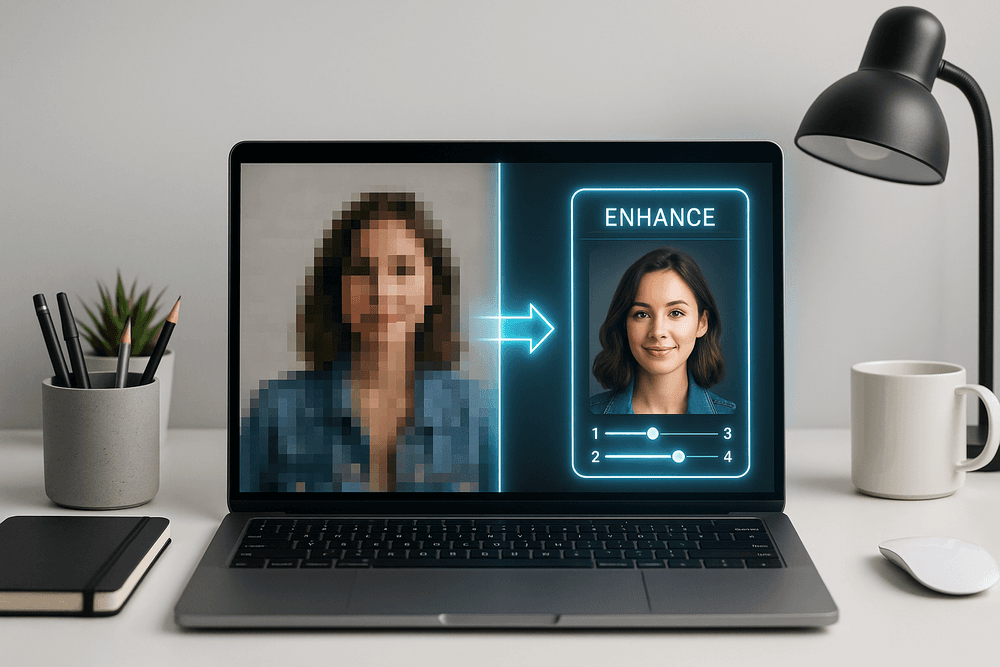
Harnessing the power of an AI upscaler is more than just a one-click process. To truly achieve professional, print-worthy results, you need a strategic approach. Think of it as a collaboration between your creative eye and the tool’s algorithm. This guide breaks down the workflow into three essential steps, followed by common pitfalls to avoid for a perfect finish every time.
Step 1: Choosing the Right Source Image
The golden rule of any image enhancement process is "garbage in, garbage out." An AI upscaler is a powerful tool for increasing resolution, but it's a reconstructor, not a mind-reader. The quality of your starting image directly dictates the quality of the final output.
For the best outcome, start with an image that has:
- Decent Original Detail: Even if the image is small, it should have clear subjects and defined shapes. An AI can intelligently add pixels to sharpen a slightly blurry but detailed photo, but it will struggle to invent details from a completely out-of-focus or motion-blurred shot.
- Minimal Compression Artifacts: Heavy JPEG compression creates blocky, pixelated artifacts that can be difficult for an AI to interpret. If possible, start with a RAW file, a high-quality PNG, or the least-compressed JPEG you have. A good AI upscaler can clean up some compression, but starting clean is always better.
Step 2: Selecting the Optimal Upscaling Settings
This is where you guide the AI to produce the best result for your specific image. Most modern AI upscaler tools offer a suite of options that allow you to tailor the enhancement process.
- Scale Factor (2x, 4x, 8x): It’s tempting to immediately jump to the highest setting, but this can sometimes lead to an over-processed, unnatural look. For most uses, a 2x or 4x upscale is sufficient to create a sharp, high-resolution image. If you need a larger size, consider upscaling in stages (e.g., upscaling by 2x, then running the new image through the process again for another 2x upscale).
- AI Model or Mode: Many tools provide different AI models trained for specific content. Common options include "Standard," "Photography," "Digital Art," or "Text." Choosing the correct model is crucial—using a "Digital Art" setting on a photograph might create an unwanted painterly effect.
- Enhancement Features: Look for toggles like Noise Reduction to clean up grain from old photos or low-light shots, and Face Restoration (or Face Enhancement), which is a game-changer for portraits. This feature uses a separate AI model trained specifically to reconstruct facial features with stunning accuracy.
Step 3: Post-Upscale Adjustments and Fine-Tuning
The AI upscaler does the heavy lifting, but the final polish is what separates a good result from a great one. Once the image is upscaled, open it in your preferred photo editor to make final adjustments.
- Review for Artifacts: Zoom in to 100% and scan the image for any strange textures or distorted patterns the AI might have introduced. These are often minor and can be fixed with a spot healing or clone stamp tool.
- Color and Tone Correction: The upscaling process can sometimes cause a slight shift in color or contrast. Make subtle adjustments to brightness, saturation, and white balance to match your creative vision.
- Apply Final Sharpening: While the AI upscaler adds detail, a final, light touch of sharpening can make the image pop. Use a "smart sharpen" or "unsharp mask" filter with a low amount and radius to avoid creating harsh edges or halos.
Common Mistakes to Avoid When Using an AI Upscaler
- Over-Upscaling: Trying to turn a tiny, 100x100 pixel thumbnail into a wall-sized print will rarely yield good results. Be realistic about the technology's limits.
- Ignoring the AI Model: Failing to select the appropriate model for your image type can lead to bizarre textures and disappointing outcomes.
- Accepting the Default Output: Relying solely on the AI’s first pass without any post-processing is a missed opportunity. A few manual tweaks can elevate the final image significantly.
- Starting with Heavily Damaged Images: While AI is great at fixing minor flaws, it can't magically restore an image that is severely corrupted, compressed, or almost entirely out of focus.
From Blurry to Brilliant: Real-World AI Upscaler Use Cases
The true power of an ai upscaler isn't just technical—it's about the practical, real-world problems it solves. This technology is more than just a tool for photographers; it’s a versatile solution for historians, marketers, artists, and anyone looking to improve their visual content. Let's explore some of the most impactful ways AI image enhancement is transforming pixels and possibilities.
Restoring and Reviving Old Family Photographs
Every family has a collection of cherished, yet fading, photographs. These irreplaceable memories are often small, grainy, or suffering from the low resolution of early digital scans. A powerful ai upscaler can breathe new life into these treasures. By intelligently analyzing and reconstructing the image, it can sharpen faces, clarify blurry details, and reduce film grain without creating an artificial look. This process allows you to rediscover lost details in an ancestor's smile or the texture of a vintage wedding dress. Instead of a pixelated digital copy, you get a high-resolution file perfect for printing, framing, and preserving your family history for generations to come.
Enhancing E-commerce Product Images to Boost Sales
In the competitive world of e-commerce, a picture isn’t just worth a thousand words—it’s worth a sale. Customers rely on high-quality product images to assess quality, texture, and detail. Blurry or small images can create doubt and drive potential buyers away. An ai upscaler is a game-changer for online retailers. It allows you to take existing, lower-resolution product shots and transform them into crystal-clear, high-definition images suitable for zoom functions and premium product pages. This enhances the perceived value of your products, builds customer confidence, and can directly lead to increased conversion rates. It’s a cost-effective alternative to expensive reshoots, ensuring your entire catalog has a sharp, professional polish.
Upscaling Digital Art and Illustrations for Print
For digital artists and illustrators, resolution can be a major creative constraint. You might create a stunning piece on a tablet only to realize it's too small to be sold as a high-quality print or used on large-format merchandise. This is where an ai upscaler unleashes creative freedom. Unlike traditional resizing methods that produce blurry, pixelated results, AI-powered tools are trained on vast datasets of artwork. They understand how to upscale lines, textures, and color gradients while maintaining artistic integrity. This means you can confidently scale your digital paintings, vector-style illustrations, and complex designs to print-ready perfection without having to redraw them from scratch.
Improving Low-Resolution Graphics for Web and Social Media
Marketers and content creators often have to work with assets they’re given, which can include low-resolution logos, icons, and graphics. Using a pixelated graphic on your website or social media feed can damage your brand's professional image. An ai upscaler provides a quick and effective solution. It can take a fuzzy, small logo and make it razor-sharp for a website header or a high-resolution Retina display. It can rescue a compressed social media graphic, ensuring it looks crisp and engaging across all devices. By using AI upscaling technology, you can maintain visual consistency and elevate your brand’s online presence, ensuring every visual element is clear, professional, and impactful.
Final Thoughts: Choosing the Right AI Upscaler for Your Needs
We've explored a powerful lineup of tools, each with the remarkable ability to breathe new life into your images. But the central question remains: which is the right one for you? The answer, ultimately, lies in your specific goals, workflow, and budget.
Recap: Which AI Upscaler Should You Choose?
Making the final decision comes down to matching a tool's strengths to your primary use case.
- For Professional Photographers and Designers: If you require maximum control, batch processing, RAW file support, and seamless integration with software like Lightroom and Photoshop, then a premium, dedicated AI upscaler like Topaz Gigapixel AI or Adobe's Super Resolution is your best investment. The fine-tuned algorithms and professional-grade features justify the cost by saving significant time and producing impeccable results for client work.
- For Marketers and Content Creators: If your needs revolve around enhancing web graphics, social media content, and marketing materials, a versatile and fast tool is key. Look for an AI upscaler that offers a good balance of quality and speed, like VanceAI or Let's Enhance. Their user-friendly interfaces and subscription models are often a perfect fit for ongoing content demands.
- For Casual Users and Hobbyists: If you simply want to restore old family photos, enlarge a favorite snapshot for printing, or fix a blurry image, a free or web-based AI upscaler is an excellent starting point. Tools like Upscale.media or the free tiers of many premium services provide incredible power without any financial commitment, making high-quality enhancement accessible to everyone.
The Future of AI-Powered Image Enhancement
The technology behind every AI upscaler is evolving at a breathtaking pace. What seems like magic today will be the standard tomorrow. We are on the cusp of AI models that can not only enlarge but also intelligently interpret and reconstruct details with even greater realism—imagining and generating lifelike textures for hair, fabric, and foliage from just a few pixels.
Expect to see this technology become more integrated and invisible. Soon, powerful AI upscaling will be a standard feature built directly into smartphone cameras, operating systems, and social media platforms, enhancing images in real-time. The future isn't just about fixing low-resolution files; it's about a fundamental shift in how we capture, edit, and perceive digital imagery.
Take the Next Step: Try an AI Upscaler Today
Reading reviews and comparing features is a crucial step, but nothing beats seeing the results with your own eyes. The most effective way to choose the perfect tool is to put it to the test.
We strongly encourage you to take advantage of the free trials and freemium versions offered by the tools we've covered. Find a few challenging images of your own—a pixelated logo, a cherished but blurry family portrait, or a digital photo that’s just too small. Upload them to your top two or three contenders and compare the outcomes.
By getting hands-on, you'll discover which interface feels most intuitive and which algorithm delivers the most impressive results for your specific types of images. This small experiment is the final step in equipping yourself with a transformative tool that will save you time, unlock new creative possibilities, and elevate the quality of your visual content for years to come.