July 22, 2025
Tired of Guessing? What Your Samsung A40 Icons Actually Mean
Tired of Guessing? What Your Samsung A40 Icons Actually Mean
You glance at your phone. A tiny row of symbols stares back from the top of the screen. There’s the familiar Wi-Fi signal, sure, but what about that little ‘N’ symbol? Or the two arrows pointing in opposite directions? You’re in the middle of something important, but a sliver of your focus is now dedicated to deciphering these cryptic Samsung A40 icons. Is it an urgent system update? A low-priority notification from a game you haven't played in weeks? This constant guessing game is more than just a minor annoyance; it’s a silent productivity killer.
Decoding the Mystery of the Notification Bar
Your Samsung A40’s notification bar is prime real estate, and every app and system process is competing for a spot. The result is a visual language that’s often confusing and inconsistent. You’re forced to become an unwilling detective, pulling down the notification shade to investigate what each symbol represents.
Consider these common culprits:
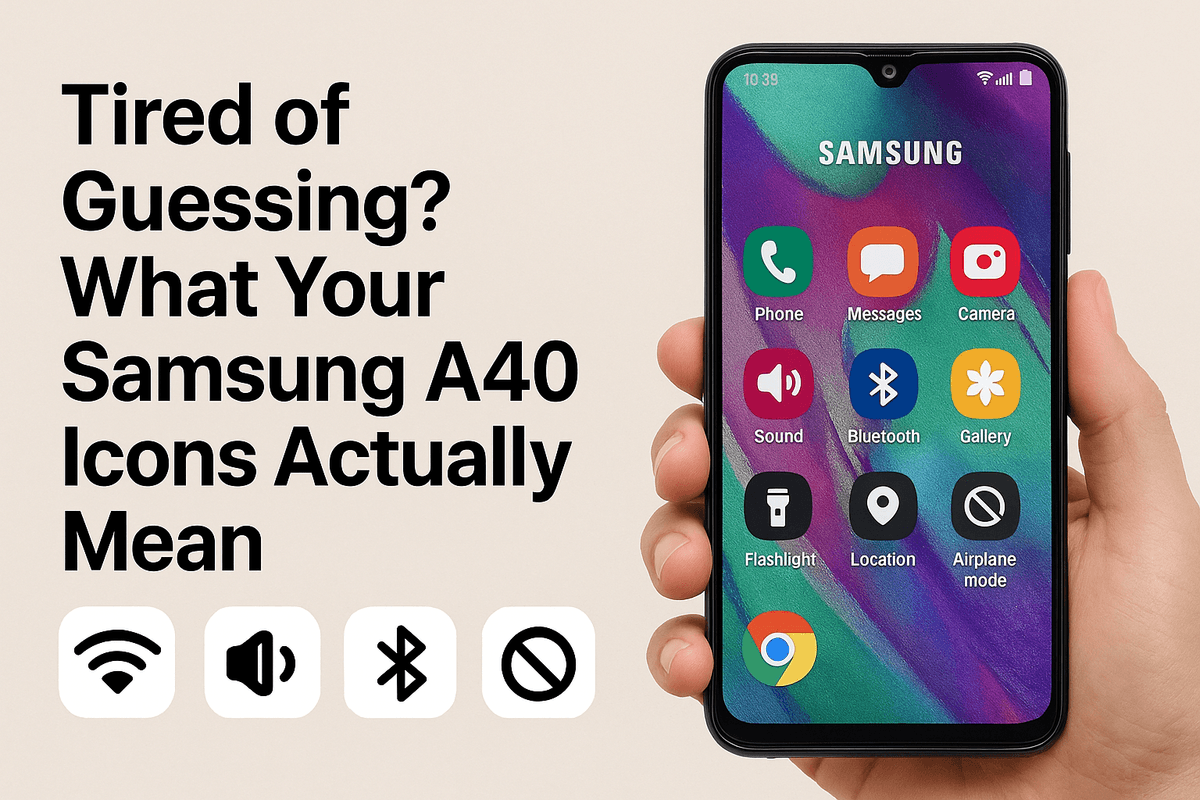
- VoLTE/VoWiFi: These icons indicate you're using Voice over LTE or Wi-Fi for clearer calls, but they often appear unprompted, causing confusion.
- NFC (Near Field Communication): That capital 'N' icon means your NFC is on, ready for contactless payments. It's useful, but it permanently occupies a slot on your bar.
- Data Saver: Represented by a circle with a plus sign, this icon is easy to mistake for something else entirely.
- App Icons: From social media to shopping apps, each notification adds another tiny logo to the mix. At a small size, the Facebook Messenger icon can look surprisingly similar to your bank's app icon, creating a moment of unnecessary panic.
This visual clutter forces you to constantly switch contexts, pulling you away from your work, conversations, and moments of focus. The sheer number and ambiguity of these Samsung A40 icons create a significant mental load.
Introducing a Smarter Way: AI-Powered Notifications
What if your notification bar wasn't a chaotic mess, but a curated, intelligent assistant? Imagine it could understand the difference between an urgent text from your boss and a 20% off coupon from a store you visited once. This is where the power of AI transforms the user experience.
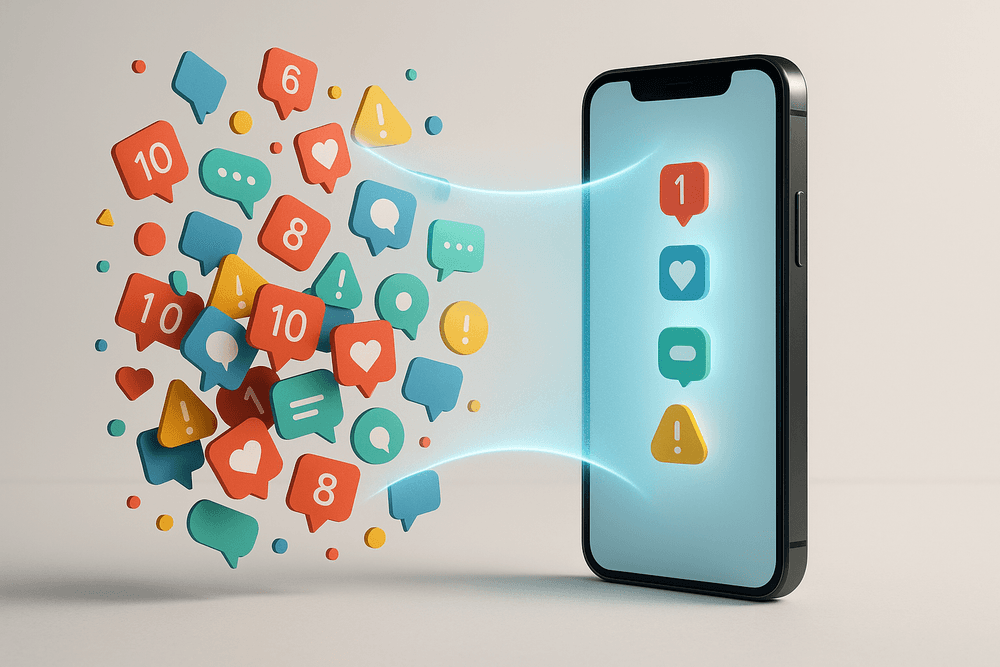
Instead of presenting you with a jumble of symbols to decode, an AI-driven notification management system works behind the scenes to bring order to the chaos. Here’s how it creates a smarter, more focused mobile experience:
- Intelligent Filtering: The AI learns your habits. It recognizes which notifications you interact with and which you dismiss. Over time, it automatically silences the low-priority alerts that clutter your screen, allowing only what’s truly important to come through.
- Smart Summaries: Rather than showing you five separate icons for social media updates, the AI can group them. It can provide a single, clean notification that says, "You have updates from Instagram and Twitter," saving precious space and mental energy.
- Contextual Prioritization: The system understands context. It can prioritize a calendar reminder for an upcoming meeting over a news alert, ensuring you see the right information at the right time.
This isn't about turning off notifications; it's about making them work for you. By moving beyond the archaic system of static Samsung A40 icons, we can usher in an era where your phone respects your attention, boosts your productivity, and finally brings some sanity back to your notification bar.
The Problem with Default Samsung Notifications: A Productivity Killer
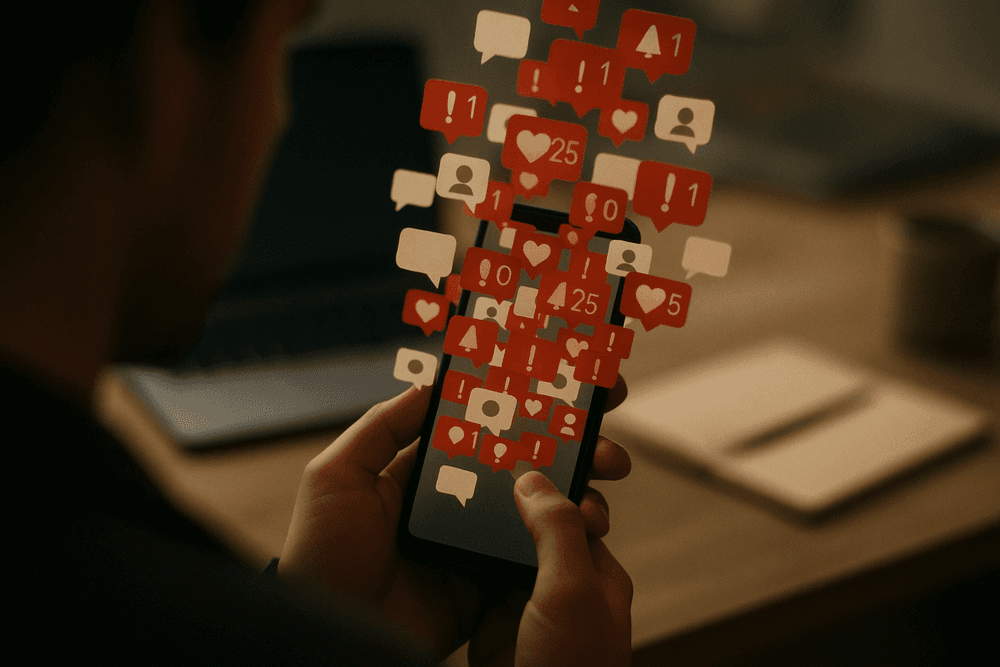
Your Samsung phone is a powerful tool, but its default notification system can feel like a relentless digital storm. Every buzz, ding, and glowing icon is a tiny demand for your attention, pulling you away from your work, your family, and your focus. This isn't just a minor annoyance; it's a significant drain on your cognitive resources. Each interruption forces a "context switch," where your brain has to drop its current task, process the new information, and then expend mental energy to get back on track. Multiplied dozens or even hundreds of times a day, this process leads to mental fatigue, reduced productivity, and a constant, low-level state of anxiety. You're left feeling busy but not productive, constantly reacting instead of proactively managing your day.
The Cryptic Language of Samsung A40 Icons
A major source of this confusion stems from the notification bar itself, which often becomes a cluttered gallery of cryptic symbols. While designed to be informative, the sheer volume and ambiguity of these icons can create more questions than answers. If you’re looking at your status bar right now, you might be wondering about some of these common but confusing Samsung A40 icons:
- VoLTE Icon: This symbol (often a phone receiver with "HD" or "VoLTE") simply means you're using Voice over LTE for clearer calls. It doesn't require any action, yet it permanently occupies valuable space.
- NFC Icon: The stylized 'N' indicates that Near Field Communication is active for things like contactless payments. But when you're not at a checkout counter, its constant presence can be a distracting mystery.
- Data Saver Icon: Often a circle with a triangular slice cut out, this icon tells you that background data usage is being restricted. While useful, it’s not immediately clear which apps are affected or if you’re missing important updates.
- App-Specific Icons: The real chaos begins when apps add their own icons. A dozen different apps might use a speech bubble or bell icon, forcing you to pull down the shade just to identify the source.
The fundamental problem with the system of Samsung A40 icons is its lack of context. An icon tells you that something is happening, but it fails to communicate its importance or urgency. This visual noise forces you to constantly decipher a symbolic language, adding another layer of mental processing to your already busy day.
Why Manual App Notification Management Is a Losing Battle
Samsung does offer manual controls. You can dive deep into your settings, navigate to the "Apps" menu, select an application, and then wrestle with its specific "Notification categories." But who has the time for that? This approach is fundamentally inefficient and unsustainable for several reasons:
- It’s Tedious: Manually configuring every single app on your phone is a time-consuming chore that you have to repeat every time you install a new one.
- It's a Blunt Instrument: You're often faced with an all-or-nothing choice. You might silence an app entirely to stop annoying marketing alerts, only to miss a critical security warning or a message from a loved one.
- It’s a Never-Ending Task: Apps are constantly updated, sometimes adding new notification channels that default to "on." Your carefully curated system can be undone overnight without you even realizing it.
This manual, reactive approach puts the burden entirely on you. You are forced to become the IT administrator for your own pocket, fighting a constant battle against digital noise. The combination of relentless interruptions, confusing icons, and inefficient controls creates a system that works against your focus, not for it.
AI-Powered Filtering: Your New Samsung Notification Manager
Tired of the constant barrage of alerts and the cryptic sea of icons at the top of your screen? For years, Samsung users have navigated a non-stop stream of notifications, where a critical work email has the same visual weight as a coupon from a shopping app. The sheer volume of samsung a40 icons, for instance, can quickly turn your notification shade into a source of stress rather than a helpful tool. But what if your phone could become an intelligent gatekeeper, automatically sorting the signal from the noise? Samsung's new AI-powered notification management system does exactly that, transforming your notification experience from chaotic to controlled.
How AI Intelligently Sorts and Groups Your Alerts
At its core, this system acts like a personal assistant that learns your habits. It moves beyond the basic, app-level notification settings you’re used to. The AI analyzes your behavior—which notifications you engage with immediately, which you swipe away, the time of day you interact with certain apps, and even the content within the alerts.
Over time, it builds a sophisticated understanding of your priorities. Instead of a simple chronological list, your notifications are intelligently bundled into intuitive groups. For example:
- Work & Productivity: All your emails, Slack messages, and calendar reminders from 9 to 5 are grouped together.
- Social & Family: WhatsApp messages from your family group and social media mentions are collected for you to review during your downtime.
- Low Priority: Promotional offers, game updates, and non-urgent news alerts are silenced and grouped for later, preventing them from breaking your focus.
This contextual grouping means the system understands that a single app icon can represent wildly different levels of urgency. It differentiates a direct message from your boss from a general channel announcement, sorting them accordingly.
From Clutter to Clarity: AI-Generated Notification Summaries
The most powerful feature of this AI manager is its ability to generate concise, readable summaries. This directly addresses the problem of icon overload, where you’re left to decipher a dozen different symbols. Now, you can get the gist of your alerts at a glance.
Imagine waking up not to a screen full of miscellaneous samsung a40 icons, but to a single, clean notification digest that reads: "Good morning! You have 3 new emails about the 'Project Phoenix' launch and 5 messages in your family group chat." During a busy workday, you might receive a summary like, "You missed 2 calls from a client and have 4 unread team messages." This allows you to assess what needs your attention without having to open each app individually, giving you back precious time and mental energy.
Customizing Your Notification Feed Based on True Priority
While the AI is smart, you are always in the driver's seat. The system is built for deep personalization, ensuring you never miss what’s truly important to you. You can "train" the AI by establishing your own set of rules. Designate specific contacts, like your partner or your child’s school, as "VIPs" to ensure their notifications always break through any filter.
Furthermore, you can flag specific keywords. If you’re waiting for a package, you can set "tracking" or "delivered" as priority terms. If you're a developer, alerts containing "server down" or "critical error" can be configured to trigger an immediate, high-priority alert with a unique sound. This level of granular control transforms the static nature of app icons into a dynamic system that adapts to your life, making the sea of samsung a40 icons and other alerts finally work for you, not against you.
Best Practices for Managing Your Samsung A40 Icons with AI
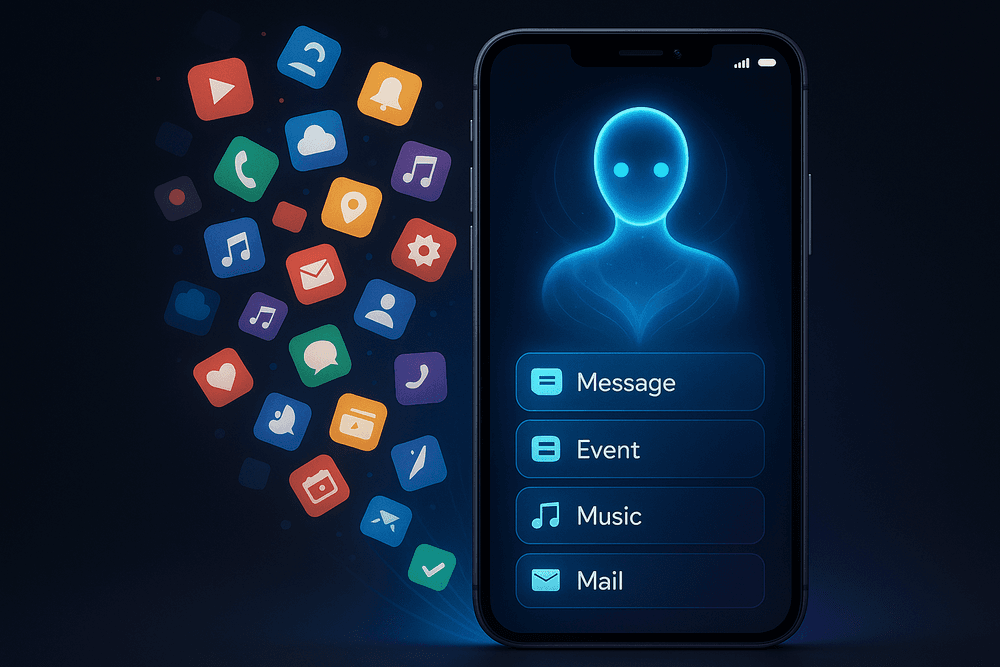
Unlocking the full potential of an AI notification manager goes beyond simple installation. The real magic happens when you customize and train the system to understand your unique workflow. By investing a little time upfront, you can transform the chaotic stream of Samsung A40 icons in your status bar into an organized, intelligent, and distraction-free flow of information. Here’s how to master your new AI assistant.
Step-by-Step: Setting Up Your AI Notification Assistant
Getting started is straightforward, but each step is crucial for giving the AI the power it needs to help you. Follow this process to ensure a solid foundation for smarter notification management.
- Download and Grant Permissions: Begin by installing your chosen AI notification app from the Google Play Store. During the initial setup, you will be prompted to grant "Notification Access." This is the single most important permission. It doesn't allow the app to read your private messages, but it does allow the AI to see the source app, the title, and the snippet of a notification, giving it the context it needs to sort, filter, and manage the associated Samsung A40 icons.
- Initial Profile Selection: Most advanced AI tools will offer initial profiles. You might see options like "Work Focus," "Personal Life," or "Balanced Productivity." Select the one that most closely matches your primary goal. This pre-loads the AI with a basic set of rules, such as prioritizing calendar and email apps for a "Work Focus" profile.
- Connect Key Services (Optional but Recommended): For maximum intelligence, link your core productivity apps like Google Calendar, Slack, or Microsoft Teams. This allows the AI to understand not just that you have a notification, but that it pertains to an upcoming meeting you're scheduled to attend, making its filtering decisions far more accurate.
Training the AI: Tips for a Perfectly Personalized Experience
Your AI assistant is smart, but it becomes a genius when it learns from you. The first week is a critical training period where your feedback actively shapes its behavior.
- Master the Feedback Loop: The AI learns from every interaction. When it bundles notifications, review its work. Did it correctly categorize a Slack message as low priority? If not, tap and hold the notification and re-categorize it as "Important." This direct feedback teaches the algorithm to recognize similar alerts as high-priority in the future. Over time, the AI learns which Samsung A40 icons truly require your immediate attention.
- Define Your VIPs: Dive into the app’s settings and manually designate your "Very Important Apps" and contacts. You can set rules so that any notification from your boss’s email address or any text from your partner always breaks through, regardless of your current focus mode.
- Use Keyword Triggers: This is where you elevate the AI's understanding. Teach it specific keywords. For instance, you can program it to treat any notification containing words like "urgent," "critical," "overdue," or a specific project name as a high-priority alert. This helps the AI make sense of alerts from apps that use generic Samsung A40 icons.
How to Silence Distractions Without Missing Critical Alerts
The ultimate goal is to achieve digital peace without the anxiety of missing something important.
- Embrace Smart Summaries: Instead of letting notifications trickle in all day, configure your AI to deliver bundled summaries. You can set it to give you a "low-priority roundup" every hour, or just three times a day. This clears your status bar, replacing dozens of individual Samsung A40 icons with a single, clean report you can review on your own schedule.
- Activate Contextual Focus Modes: Create and schedule "Focus Modes" for different parts of your day. A "Deep Work" mode from 9 AM to 11 AM could block everything except calendar event reminders. A "Commute" mode might only allow alerts from Maps and your podcast app. The AI is smart enough to handle the exceptions, such as letting a call from a VIP contact bypass your "Deep Work" mode, ensuring you remain reachable for true emergencies.
Real-World Scenarios: A Day in the Life with AI-Managed Notifications
Theory is one thing, but how does an AI-driven notification system perform in the real world? It’s not just about silencing alerts; it’s about reshaping your interaction with your device to enhance your day. Let's step into the shoes of three different Samsung users to see how intelligent management transforms their daily routines.
For the Busy Professional: Focusing on Work-Critical Alerts
Meet Sarah, a project manager whose screen is a constant battleground for her attention. Before, her morning started with a visual assault. The status bar was a cryptic line-up of icons from Slack, Gmail, LinkedIn, news apps, and personal messages. It was impossible to know what was urgent without pulling down the shade and derailing her focus.
Now, with AI-powered management, her Samsung device works as a smart assistant. The AI has learned to identify her key contacts and projects. During work hours, it automatically prioritates notifications from her boss’s email thread and direct mentions in the "Project Phoenix" Slack channel, giving them prominence. Less critical team chatter is bundled into a neat summary delivered once an hour. Social media and news alerts are silenced completely until her scheduled "break" time. The result? Her status bar is clean. The once-overwhelming row of samsung a40 icons is replaced by only the two or three that genuinely require her immediate attention, allowing her to stay in a state of deep work for longer.
For the Student: Balancing Study and Social Notifications
Leo is a university student juggling lectures, library sessions, and a vibrant social life. His biggest challenge is focus. Every buzz and every new icon on his screen is a potential rabbit hole, turning a quick check into a 30-minute scroll through social media.
Leo now uses an AI-powered "Study Mode." When he activates it, his phone undergoes a transformation. The AI understands his context and mutes all notifications from Instagram, TikTok, and group chats. However, it’s smart enough to know what’s important. Alerts from his university’s learning portal, emails from professors, and calls from his family are still allowed through. Better yet, the AI compiles a "Social Digest" of the messages and mentions he missed, ready for him to review once his study session is over. He no longer experiences the fear of missing out, because nothing is truly missed—it’s just intelligently postponed. This curated experience prevents a distracting clutter of icons from ever appearing, helping him ace his exams without becoming a digital hermit.
For the Power User: Taking Full Control of App Alerts and Icons
Then there’s Alex, a tech enthusiast who loves to customize every aspect of their device. For Alex, a simple on/off switch for notifications isn’t enough. They want granular control, and the AI system delivers exactly that.
Alex dives deep into the AI’s rule-based engine. They’ve set up a custom profile where notification priority is determined by a combination of factors: the app, the sender, and even the time of day. For example, a single WhatsApp message won’t trigger a sound or a status bar icon, but three messages from the same person in under a minute will trigger a high-priority alert. Alex has even configured the AI to change the visual treatment of specific samsung a40 icons based on these rules, making certain alerts more prominent without a sound. This allows them to create a hyper-personalized system that filters noise with surgical precision, proving that AI doesn't have to mean less control—it can mean smarter, more powerful control.
Conclusion: Reclaim Your Focus from Confusing Samsung A40 Icons
Your journey through the digital landscape shouldn't be a constant battle against your own device. For too long, the notification bar has been a source of anxiety rather than information, a cluttered stream of cryptic symbols that demand your immediate interpretation. The endless parade of confusing Samsung A40 icons, each one a tiny mystery, chips away at your concentration and drains your mental energy. You glance at your screen, hoping for a quick update, only to be met with a puzzle that distracts you from the task at hand. This cycle of interruption and cognitive load is the silent productivity killer of the modern smartphone era. But it doesn't have to be your reality anymore.
From Icon Chaos to Intelligent Clarity
Imagine a world where you are no longer the gatekeeper, forced to manually sift through every alert. The AI-powered Notification Manager we've explored is the definitive solution to this problem. It acts as your personal digital assistant, working silently in the background to bring order to the chaos. It doesn't just manage notifications; it understands them. That vague system update icon? The AI knows its priority level and can summarize its purpose. That cluster of social media and email alerts? It can bundle them into a single, digestible summary, delivered when you are ready for it, not the other way around.
The era of deciphering ambiguous Samsung A40 icons is over. Our intelligent system replaces guesswork with insight, transforming your notification bar from a source of stress into a streamlined, high-value information feed. You regain control, allowing you to engage with your device on your own terms and protect your most valuable asset: your focus.
Your Next Step to a Distraction-Free Smartphone Experience
You now stand at a pivotal moment. You can continue to let your smartphone dictate your attention span, or you can embrace the future of intelligent notification management. Taking back your time and boosting your productivity isn't a complex, multi-step process. It begins with a single, simple action that will fundamentally change how you interact with your Samsung device. By implementing an AI-driven approach, you are not just adding an app; you are upgrading your entire mobile experience. You are choosing a calmer, more focused, and more productive digital life.
The solution to the constant distraction caused by a barrage of Samsung A40 icons and other alerts is here. It’s powerful, intuitive, and ready to start working for you immediately.
Don't let another day be lost to digital noise. Take the definitive step towards a smarter, more focused relationship with your technology. Download the AI Notification Manager today and rediscover what it feels like to be in complete control of your attention.