July 22, 2026
What a GIF Background Remover Does for Small Agency Teams
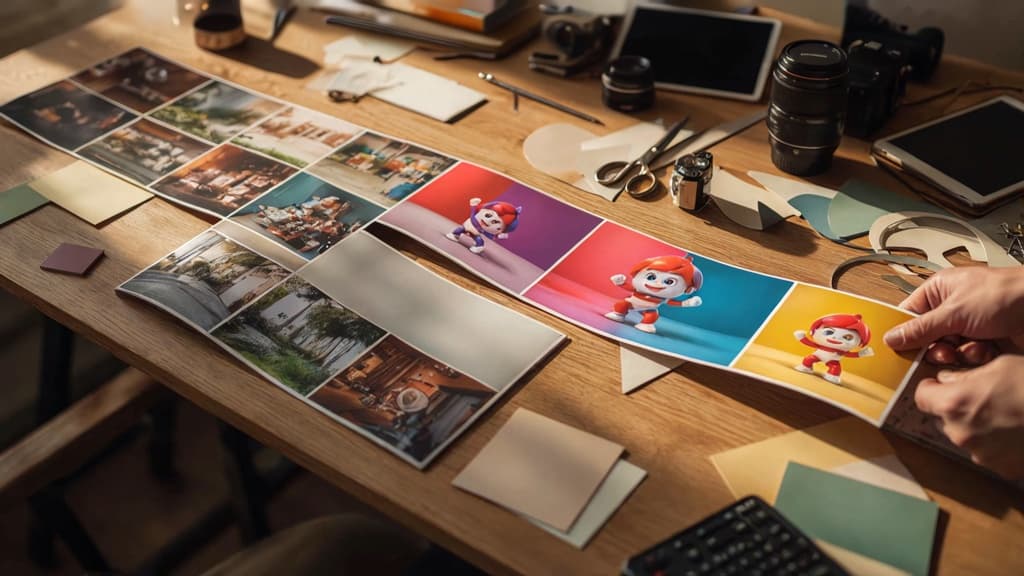
A GIF background remover turns a moving asset into something your team can place more flexibly: over a new color, inside a layout, on a product page, in a deck, or anywhere the original background would clash with the client’s brand.
What is a GIF background remover?
A GIF background remover is an AI tool that removes or isolates the background across every frame of an animated GIF. Instead of manually cutting out the subject frame by frame, the tool detects the main object, person, product, or graphic and creates a transparent or cleaner-background version of the animation.
For a small agency, the value is simple: you can rescue and repurpose motion assets without sending every request to a motion designer.
That matters when a client sends:
- A creator GIF filmed against a messy room
- A product animation on the wrong color
- A looping mascot or sticker that needs to sit on multiple layouts
- A campaign asset that works conceptually but not visually
- A social GIF that needs to be adapted for paid, email, or web placements
The goal is not just “remove the background.” It is to make the animation usable in more branded contexts without rebuilding it from scratch.
How AI separates a moving subject from its background
AI background removal works by identifying the subject in each frame, then predicting which pixels belong to the foreground and which belong to the background. With GIFs, the challenge is that the tool has to maintain that decision across motion, compression, blur, hair, shadows, hands, product edges, and changing light.
Most tools use a mix of object detection, segmentation, and temporal consistency. In plain English: the AI finds the subject, traces its outline, and tries to keep that outline stable as the animation moves.
This is why a simple GIF can process cleanly in seconds, while a busy clip may need extra attention. A product rotating on a plain background is easier than a person dancing in front of shelves. A logo animation with hard edges is easier than curly hair, smoke, liquid, or motion blur.
For agencies, the practical takeaway is that the input matters. The cleaner the contrast between subject and background, the more likely the AI cutout will look production-ready. The more the subject blends into the background, the more likely you are to see rough edges, missing details, or unstable frames.
When background removal is worth it versus rebuilding the asset
Background removal is worth it when the core motion is already strong and the background is the main problem. If the client likes the gesture, product movement, expression, or timing, removing the background can preserve the approved creative while making it easier to adapt.
It is usually a good fit when:
- The subject is clear and visually distinct
- The animation is short and loopable
- The existing motion supports the campaign idea
- The asset only needs a cleaner or transparent backdrop
- The deadline does not justify a full reshoot or rebuild
Rebuilding is usually smarter when the GIF is low-resolution, badly compressed, poorly lit, off-brand at the subject level, or built from motion that no longer serves the concept. If the product angle is wrong, the wardrobe is wrong, the action feels awkward, or the animation itself looks dated, removing the background only gives you a cleaner version of the wrong asset.
For small teams, the decision comes down to leverage. Use AI background removal when it helps you extend approved creative faster. Rebuild when the asset would still need heavy creative repair after the background is gone.

Best Agency Use Cases for Transparent or Clean-Background GIFs
Once the cutout is working, the value is less about “removing a background” and more about making one animated asset work harder across a client’s channels.
Social, ads, and sticker-style campaign assets
For social teams, a transparent GIF can turn a single creator clip, product move, or character animation into a flexible campaign element. Instead of asking design to rebuild versions for every post format, the same motion asset can sit over a Reel cover, paid social graphic, story frame, carousel slide, or launch countdown.
This is especially useful for agencies handling high-volume content calendars. A client’s mascot wave, product spin, founder reaction, or animated CTA can become a recurring branded sticker system, not a one-off file buried in a campaign folder.
Common agency wins include:
- Turning product demos into punchy paid ad overlays
- Creating branded reaction GIFs for community and social replies
- Adding animated sale badges or launch callouts without redesigning every layout
- Building sticker-style assets for Instagram Stories, TikTok edits, and creator toolkits
- Repurposing one approved motion asset across multiple client sub-brands or markets
A clean-background GIF also helps preserve art direction. The motion can be dropped onto brand colors, gradients, photography, or campaign textures without the ugly box effect that makes assets feel rushed.
Email, landing page, and presentation animations
Email and web teams often need motion that adds energy without slowing production. A lightweight GIF with a clean or transparent background can make a hero section, feature block, onboarding email, or sales deck feel more polished without requiring a full video embed or custom animation pass.
For example, an agency might use a gif background remover to isolate a SaaS UI interaction, a product-in-hand moment, or a short customer reaction, then place it inside a branded landing page module. The same asset can later support an email header, webinar slide, or pitch deck recap.
Strong fits include:
- Animated product callouts in launch emails
- Small motion accents beside landing page CTAs
- Before-and-after visuals for service pages
- Event or webinar reminder graphics
- Client presentation moments that feel more premium than static screenshots
For agencies, the advantage is speed across deliverables. One approved animated asset can support the campaign page, nurture sequence, sales enablement deck, and internal client recap without asking motion design to start over each time.
Client product, creator, and UGC cleanup
Client-supplied assets are rarely perfect. Product videos come from showrooms, creator clips arrive with messy bedrooms or distracting backgrounds, and UGC often includes visual noise that clashes with the campaign look.
Background cleanup lets agencies rescue usable motion from imperfect source material. A skincare client’s hand-applied product clip can be isolated for a clean ecommerce animation. A food brand’s creator bite reaction can be placed over campaign colors. A B2B client’s rough conference booth clip can become a cleaner event recap asset.
This is particularly valuable when:
- The creator’s performance is strong, but the setting is off-brand
- The product is clear, but the background distracts from the offer
- The client has limited source footage and no budget for a reshoot
- The agency needs multiple cropped versions for paid, organic, and web
- The asset must match an existing campaign system
Used well, GIF background removal helps small teams stretch client content further while keeping the final output looking intentional, not patched together.
A Fast AI Workflow for Removing a GIF Background
Once you know the asset is worth cutting out, the goal is speed without turning a simple production task into a frame-by-frame design project. A tight workflow keeps the team moving and gives account leads something easy to review before the animation goes into a campaign.
Start with the cleanest source GIF or video clip
Background removal is fastest when the source has clear separation between the subject and the environment. Before uploading anything to a gif background remover, pick the version with the least visual friction:
- Higher resolution over compressed exports
- Steady camera over shaky movement
- Clear subject outline over motion blur
- Simple backdrop over busy scenery
- Shorter loop over long, messy footage
If the client sent a low-quality GIF from Slack or an old deck, ask for the original video, product clip, or creator file if available. A five-second MP4 often gives the AI more visual information than a heavily compressed GIF and usually exports cleaner.
For agency teams, this intake step is where time is won or lost. Add a quick source check to the production brief: file type, dimensions, intended placement, and final format needed. That prevents a designer from polishing an animation that later turns out to be too small for paid social, too heavy for email, or cropped wrong for the landing page module.
Run the AI cutout and review key frames
Upload the selected clip or GIF, run the AI cutout, then review the animation at normal speed and frame-by-frame at the points where motion changes. You do not need to inspect every frame first. Start with the likely failure points:
- Hair, hands, fabric, reflections, or product edges
- Fast turns or gestures
- Frames where the subject overlaps a similar-colored background
- First and last frames of a loop
- Any moment where the subject enters or leaves the canvas
If the tool allows it, make small mask corrections only where they affect the visible result. Avoid over-editing static frames that no one will notice in motion. For small teams, the practical question is not “Is every pixel perfect?” but “Will this hold up in the actual placement?”
Keep a simple review pass: production designer checks the cutout, creative lead checks whether the movement still works, account owner checks whether the asset matches the requested deliverable. That is usually enough to catch issues before the file reaches the client.
Export, test, and hand off the finished animation
Export based on where the asset will live, not just what the tool defaults to. Transparent GIFs are useful for broad compatibility, but they can be large and limited in color. For web or social workflows, you may also need MP4, WebM, PNG sequence, or a platform-specific format.
Before handoff, test the animation in context:
- Drop it onto the intended background or layout
- Check the loop start and end
- Confirm dimensions and file size
- Preview on desktop and mobile if it is campaign-facing
- Save an editable source version plus final exports
Then package the asset so the next person does not have to guess. Use a clear filename with client, campaign, placement, size, and version number. Include any notes the media buyer, email developer, or web designer needs, such as recommended background color, placement constraints, or fallback still.
That last bit matters for agencies juggling multiple clients. A clean handoff turns AI background removal from an ad hoc design favor into a repeatable production step.

Quality Controls for Clean Edges, Smooth Motion, and On-Brand Output
Once the cutout is exported, the real agency QA starts: not “does the background disappear?” but “will this survive client review, campaign placement, and five different screen sizes without looking hacked together?”
Prevent halos, flicker, and broken edges
Transparent GIFs often fail at the edges. Hair, hands, product corners, glass, and motion blur can leave a light or dark outline from the old background. Before sending anything to a client, preview the animation on the actual colors it will sit on: white, black, brand backgrounds, gradient sections, and any ad or social canvas.
Watch for:
- A pale “sticker outline” around the subject
- Jagged edges on fast movement
- Missing fingers, handles, straps, or product details
- Frame-to-frame edge shimmer
- Background fragments appearing for one or two frames
If the subject flickers, don’t only inspect the first and last frame. Scrub through the moments with the most motion. A GIF background remover can produce a clean cutout on static frames but struggle when the subject turns, waves, jumps, or crosses in front of a similar-colored object.
For client-facing assets, build in a quick edge test: place the GIF on at least two high-contrast backgrounds and one real campaign background. If it only works on one color, it is not ready for handoff.
Match brand colors, shadows, and visual style
A transparent animation still needs to feel like it belongs to the client’s world. The fastest way to make a good cutout look off-brand is to drop it onto a layout with the wrong color temperature, shadow style, or visual weight.
Check the asset against the client’s existing creative:
- Does the subject need a soft shadow, hard shadow, glow, or no shadow?
- Should the edge feel crisp and graphic, or natural and photographic?
- Are colors oversaturated compared with the brand palette?
- Does the movement feel playful, premium, minimal, chaotic, or too “stock”?
- Does the asset clash with the client’s typography, product photography, or illustration system?
Small choices matter. A sneaker brand may want bold contrast and punchy motion. A fintech client may need cleaner edges, slower movement, and restrained shadows. A beauty client may care more about skin tone, lighting warmth, and smooth transitions.
Treat the cutout as part of the art direction, not just a production task.
Check performance, accessibility, and placement context
Even a clean GIF can fail if it is too heavy, too distracting, or placed in the wrong context. Before delivery, test it where it will actually run: email builder, landing page, ad preview, social post mockup, or presentation deck.
Prioritize:
- File size limits for email, paid media, and CMS uploads
- Load time on mobile
- Loop smoothness
- Cropping in square, vertical, and horizontal placements
- Text readability when animation sits near copy
- Motion intensity, especially for looping assets
If the animation communicates something important, make sure the surrounding copy or layout still carries the message when the GIF does not autoplay, loads slowly, or is viewed by someone sensitive to motion.
The QA goal is simple: the finished asset should look intentional everywhere the client sees it, not like a one-off AI experiment slipped into an otherwise polished campaign.
How Agencies Can Standardize GIF Background Removal Without Adding Headcount
Once the asset looks clean, the bigger agency challenge is making the next 40 assets follow the same logic without a senior designer policing every export.
Create reusable brand rules for animated assets
For each retainer client, turn “make it feel like the brand” into a short, reusable animation rule set. This should cover the decisions your team repeats every time a GIF background remover creates a transparent or clean-background asset:
- Approved background treatments: transparent only, solid brand color, soft gradient, product-stage shadow, or campaign-specific backdrop
- Motion style: playful bounce, smooth premium easing, snappy social-first cuts, or minimal movement
- Crop and spacing rules: how much breathing room the subject needs for paid social, email modules, and landing page placements
- Typography and sticker rules: whether captions, outlines, badges, emojis, or callouts are allowed
- Export preferences: file type, loop length, max dimensions, and platform-specific variants
The point is not to create a 40-page guideline. It is to give producers and junior creatives enough structure to move quickly without inventing the brand from scratch on every request.
A useful format is a one-page “animated asset card” per client. Include three approved examples, three banned examples, and a short note on what makes an animation feel on-brand. That becomes the reference for designers, editors, account managers, and freelancers.
Centralize approvals, naming, and asset storage
Background-removed GIFs become messy fast when every team member saves versions in different folders with names like `final_v3_new.gif`.
Standardize the operational layer so your agency can find, approve, and reuse assets without Slack archaeology. At minimum, define:
- A naming convention: `client_campaign_asset_platform_size_version`
- Approval status labels: draft, internal review, client review, approved, archived
- Storage location: one shared source of truth, not scattered exports across personal drives
- Usage notes: where the GIF is approved to appear and any campaign limitations
- Version history: what changed and why, especially when a client requests a specific visual direction
This matters because small agencies rarely lose time on the actual cutout alone. They lose time when account teams cannot find the latest file, designers remake assets that already exist, or a client approves one version while media uses another.
Treat every finished animation as a reusable brand asset, not a disposable production file.
Use Aethera to keep AI-generated outputs on-brand
Aethera helps agencies standardize this work at the brand layer. Instead of relying on every producer to remember each client’s visual preferences, you ingest the client’s brand once, then use that intelligence to guide future AI-generated outputs.
For GIF background removal workflows, that means your team can keep client-specific rules close to the work: approved colors, campaign tone, visual do’s and don’ts, export expectations, naming patterns, and examples of what “on-brand” looks like for animated assets.
The practical win is consistency without adding another reviewer to every task. A junior designer, freelance editor, or account-side producer can create variations with clearer guardrails, while partners maintain confidence that the output still fits the client’s brand.
For agencies juggling multiple clients, this is where standardization pays off. You reduce tool sprawl, avoid rebuilding the same context in every AI app, and scale production without turning brand QA into a bottleneck.